Getting started
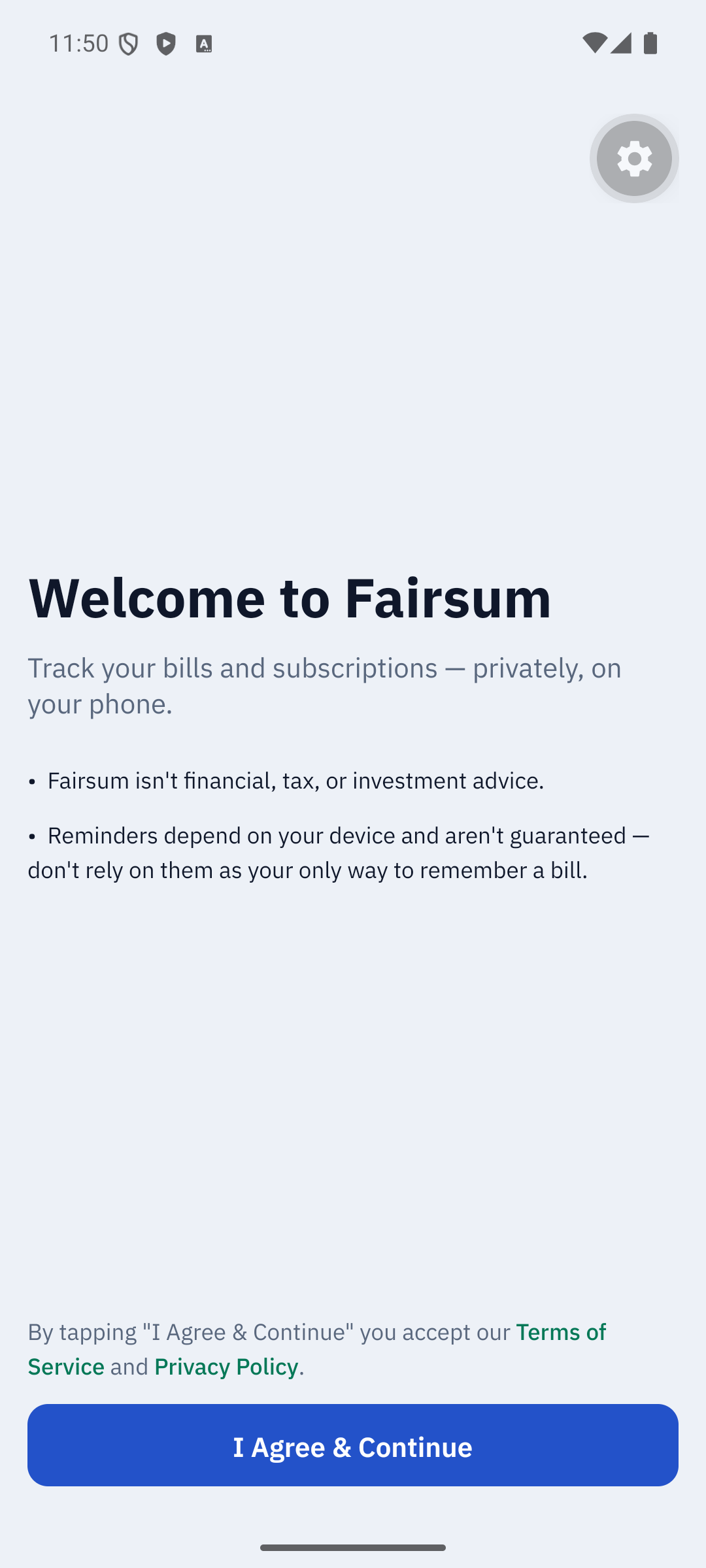
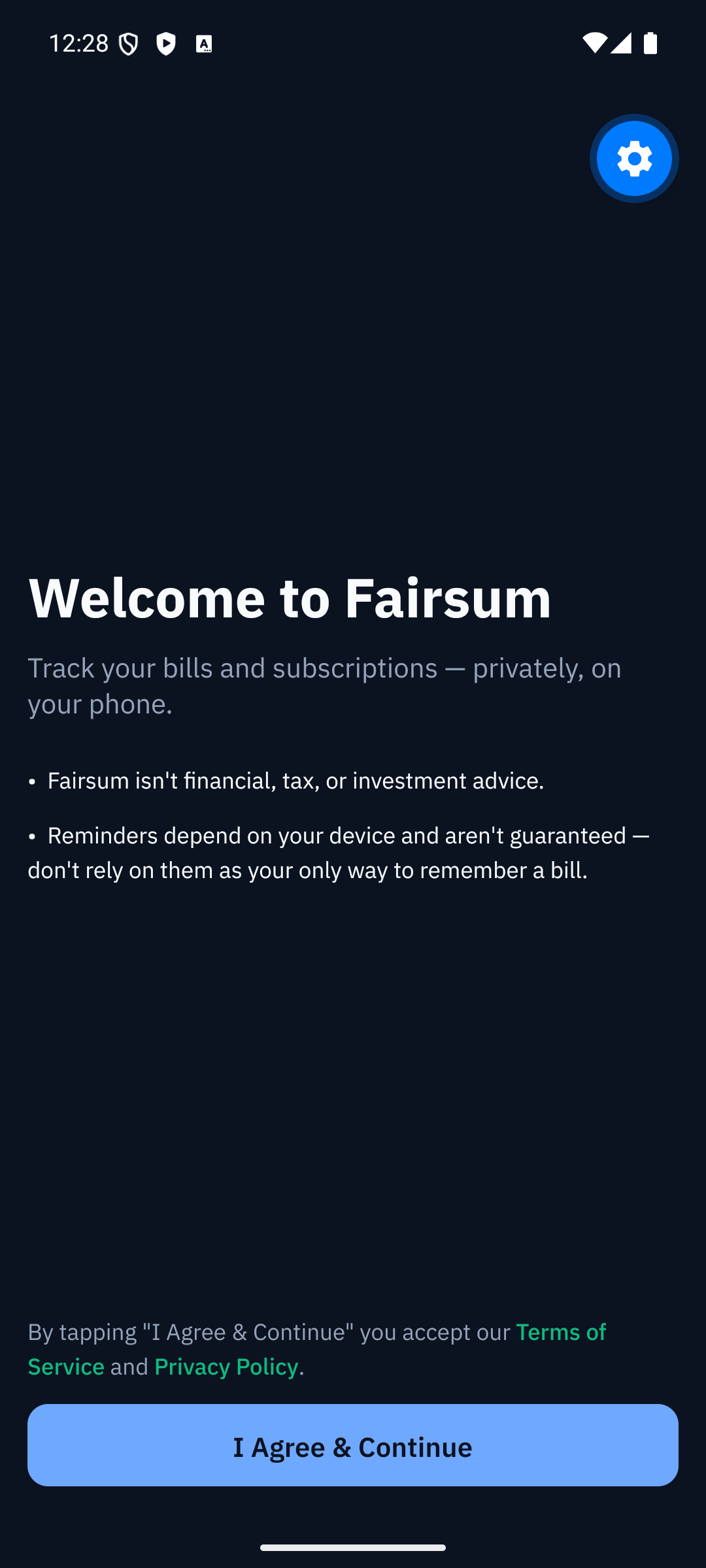
The first time you open Fairsum, you'll see a welcome screen with a short summary and links to the Terms and Privacy Policy. Tap I Agree & Continue to start using the app.
The Overview screen
Overview is your home screen. At a glance it shows:
- Net this month — your income minus expenses for the month, with In and Out totals.
- At this rate, about $X over a year — a simple yearly projection of your current net.
- Where your money goes — a breakdown of your recurring expenses by category.
- Your entries — each bill, subscription, or income you've added.
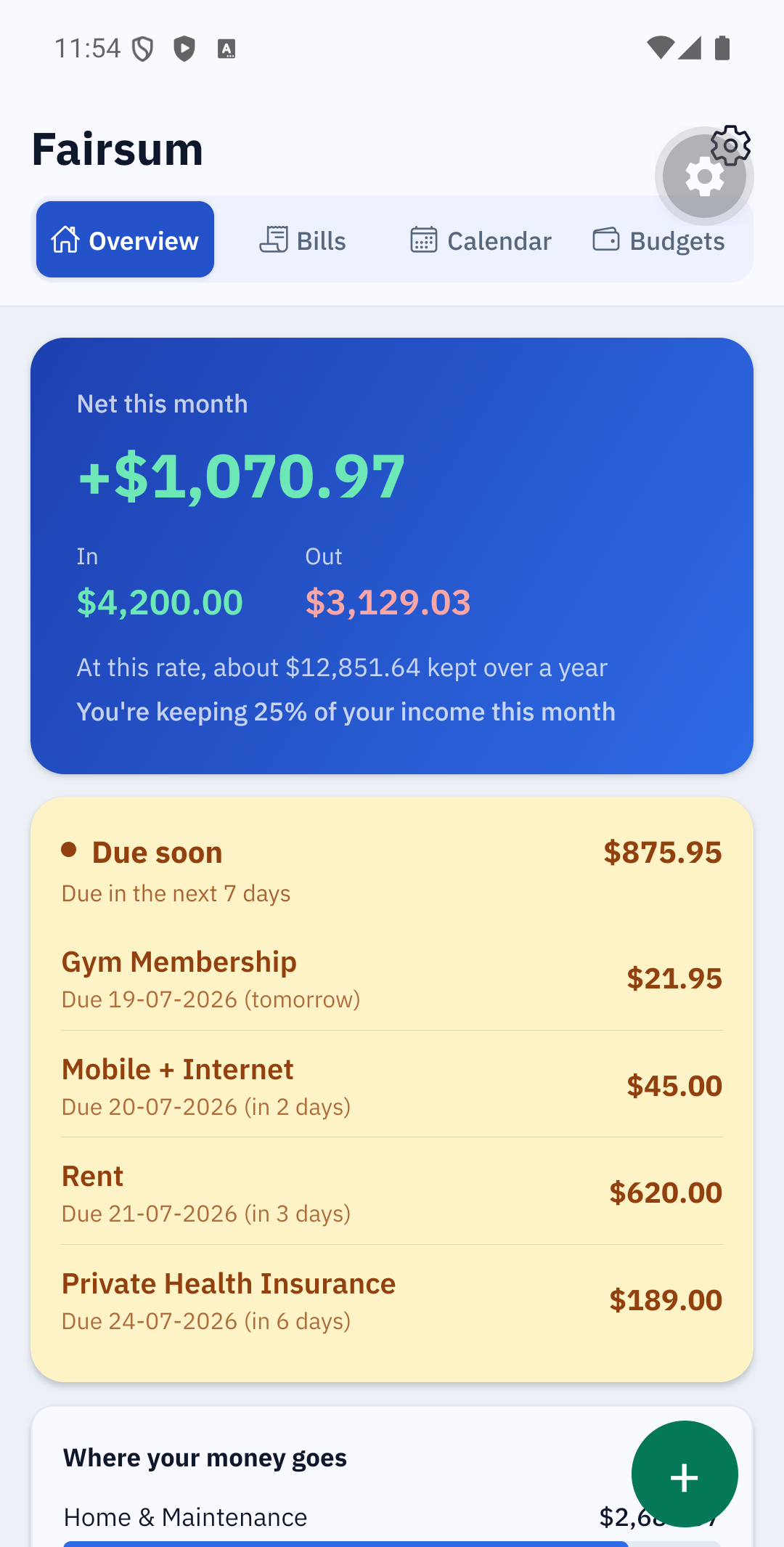
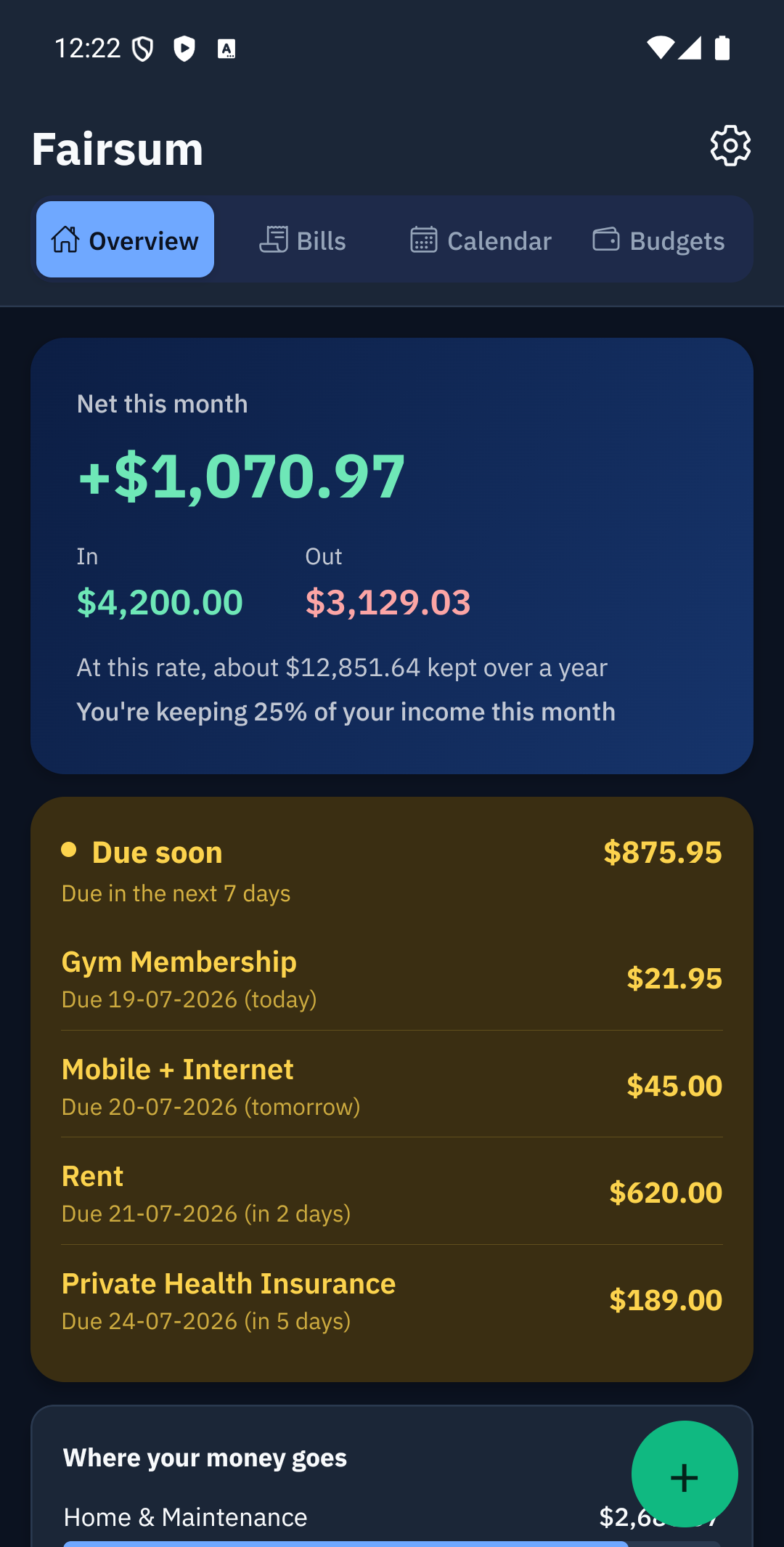
Use the three tabs at the top to switch between Overview, Bills, and Calendar. The gear icon (top right) opens Settings.
Adding an entry
Tap the green + button (bottom right) to add a bill, subscription, or income.
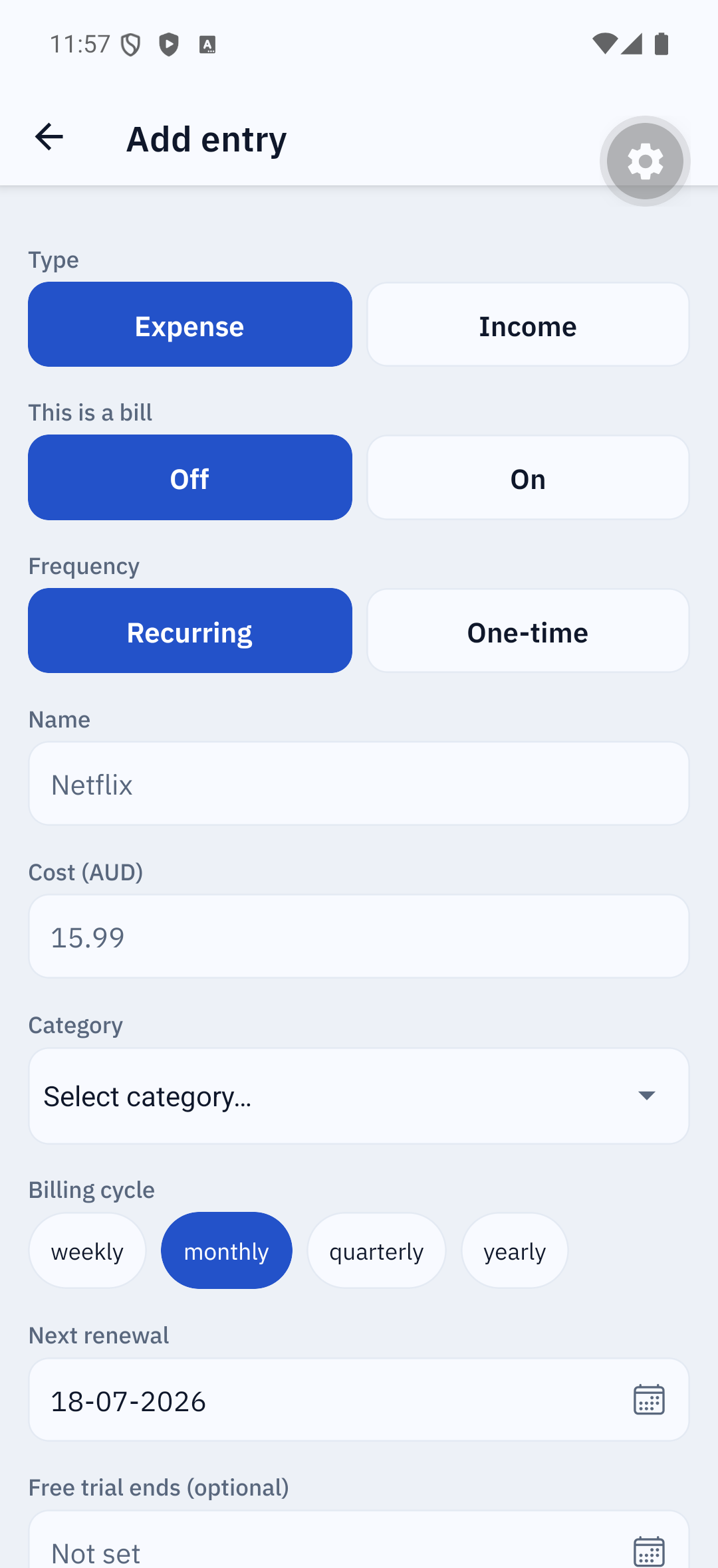
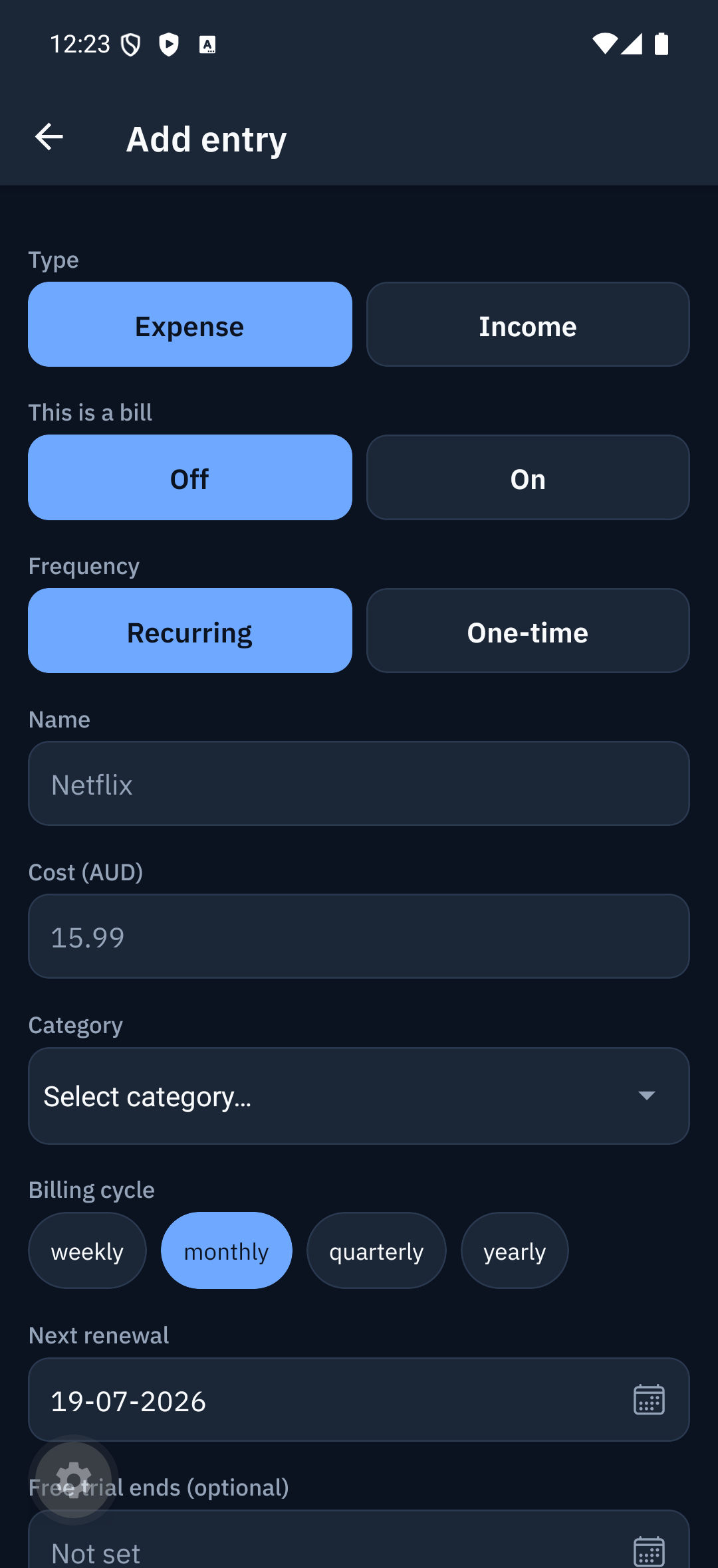
Fill in:
- Income or Expense — whether money comes in or goes out.
- Name — e.g. "Rent", "Electricity", "Private health", "Car rego", "Netflix", or "Pay".
- Amount — how much, in your currency (AUD by default).
- Category — pick one (or add your own in Settings).
- Billing cycle — weekly, monthly, quarterly, or yearly.
- Next date — when it's next due/paid, in dd-mm-yyyy (tap to pick from a calendar).
- This is a bill — turn on for something you pay and want to track as due/overdue (see Bills).
- One-time — turn on for a single, non-recurring amount.
- Note (optional) — any reminder to yourself.
Tap Save. Your entry appears on Overview and counts toward your totals.
Bills
The Bills tab lists everything you've marked as a bill, overdue first, then by soonest due. Each bill shows a "Due in N days" countdown (or "Overdue") and a Mark paid button.
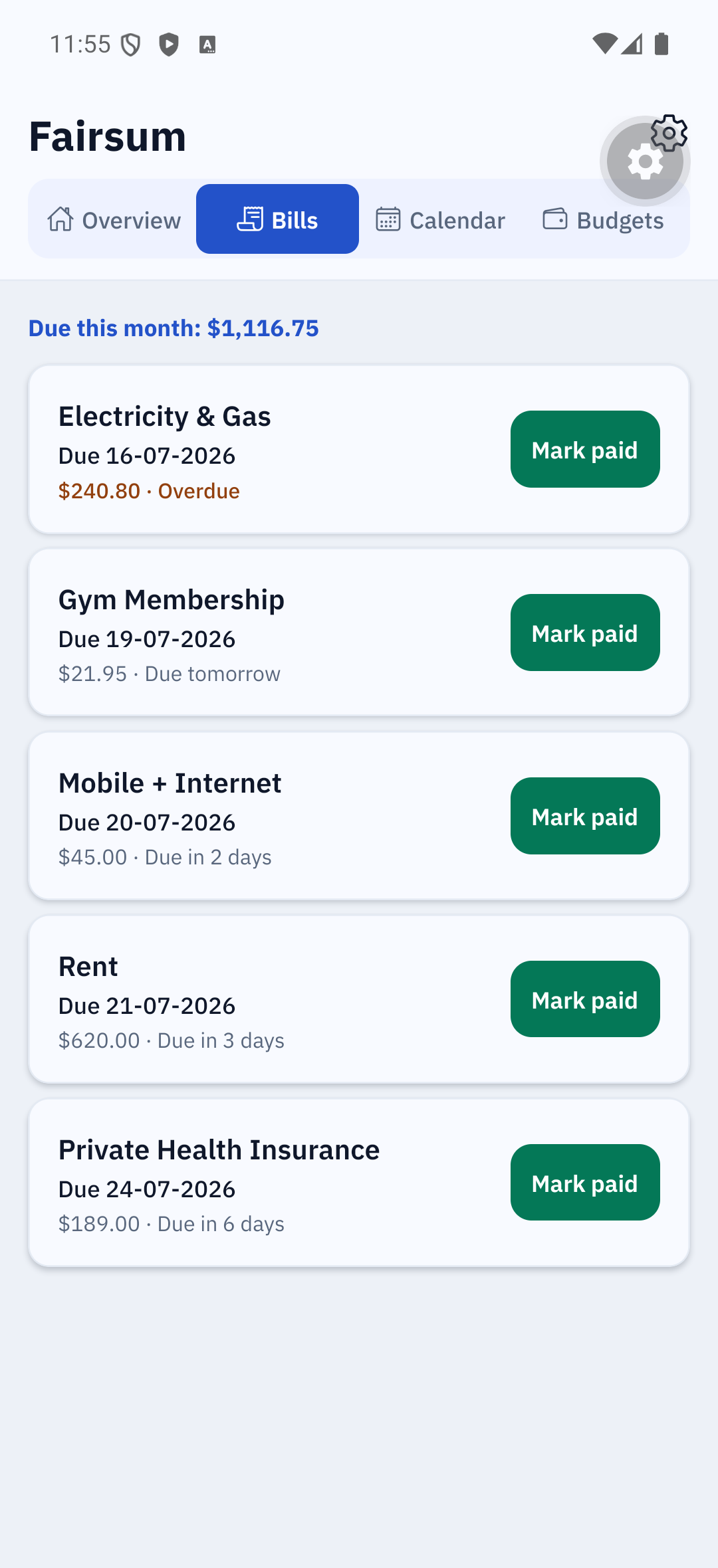
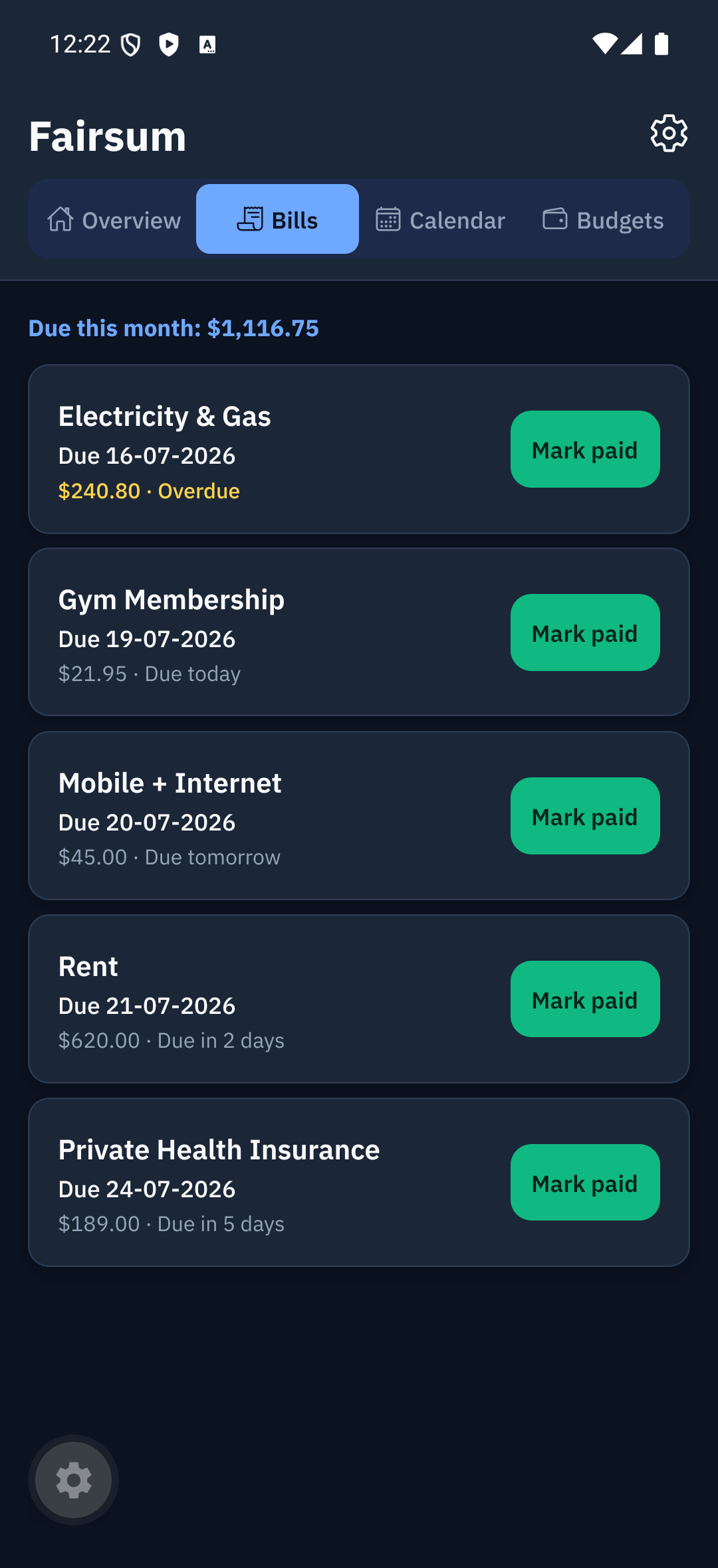
- Mark paid advances the bill to its next due date. For a bill whose amount changes each time (turn on "Amount changes each time" when adding it), you'll be asked how much you paid.
- Bills don't move themselves forward — an unpaid bill stays "Overdue" until you mark it paid, so you don't lose track of it.
Calendar
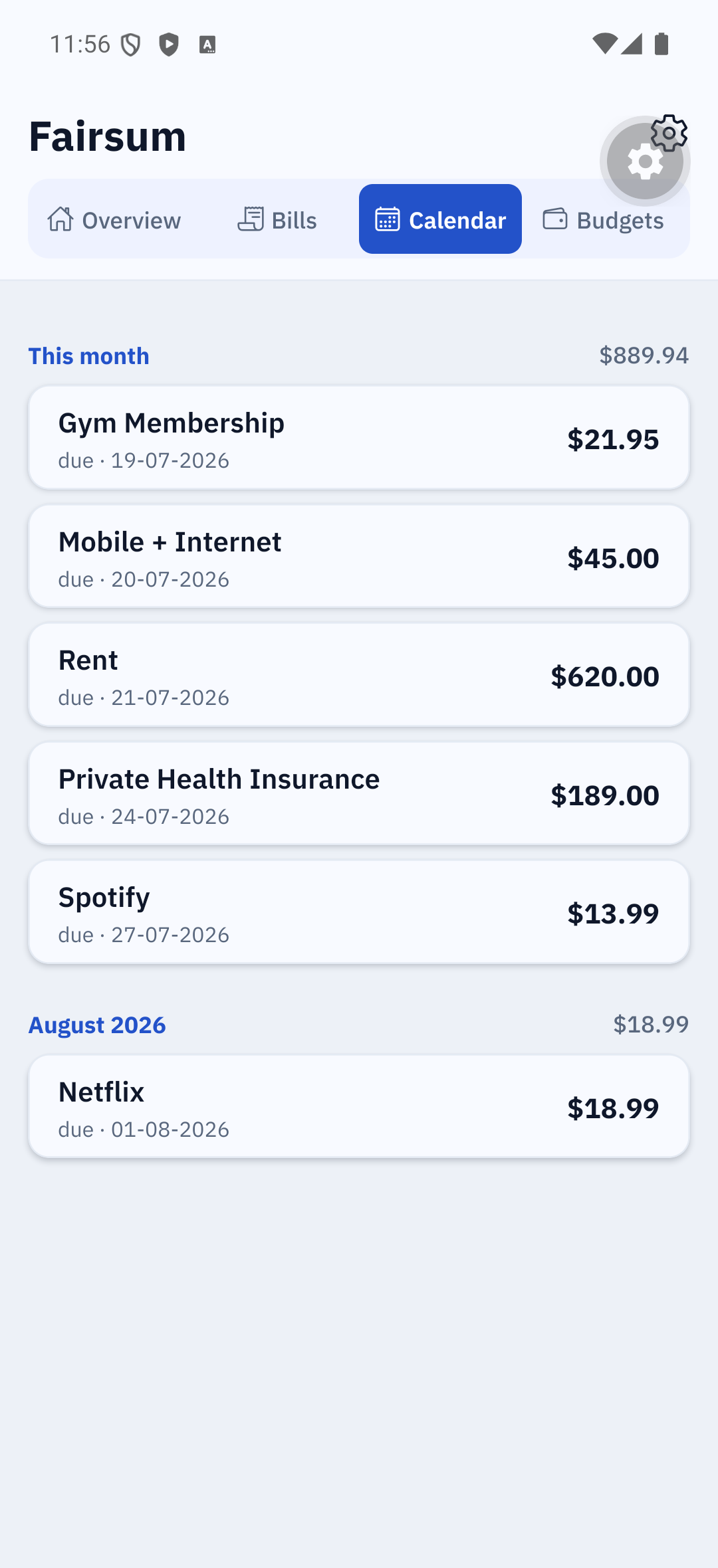
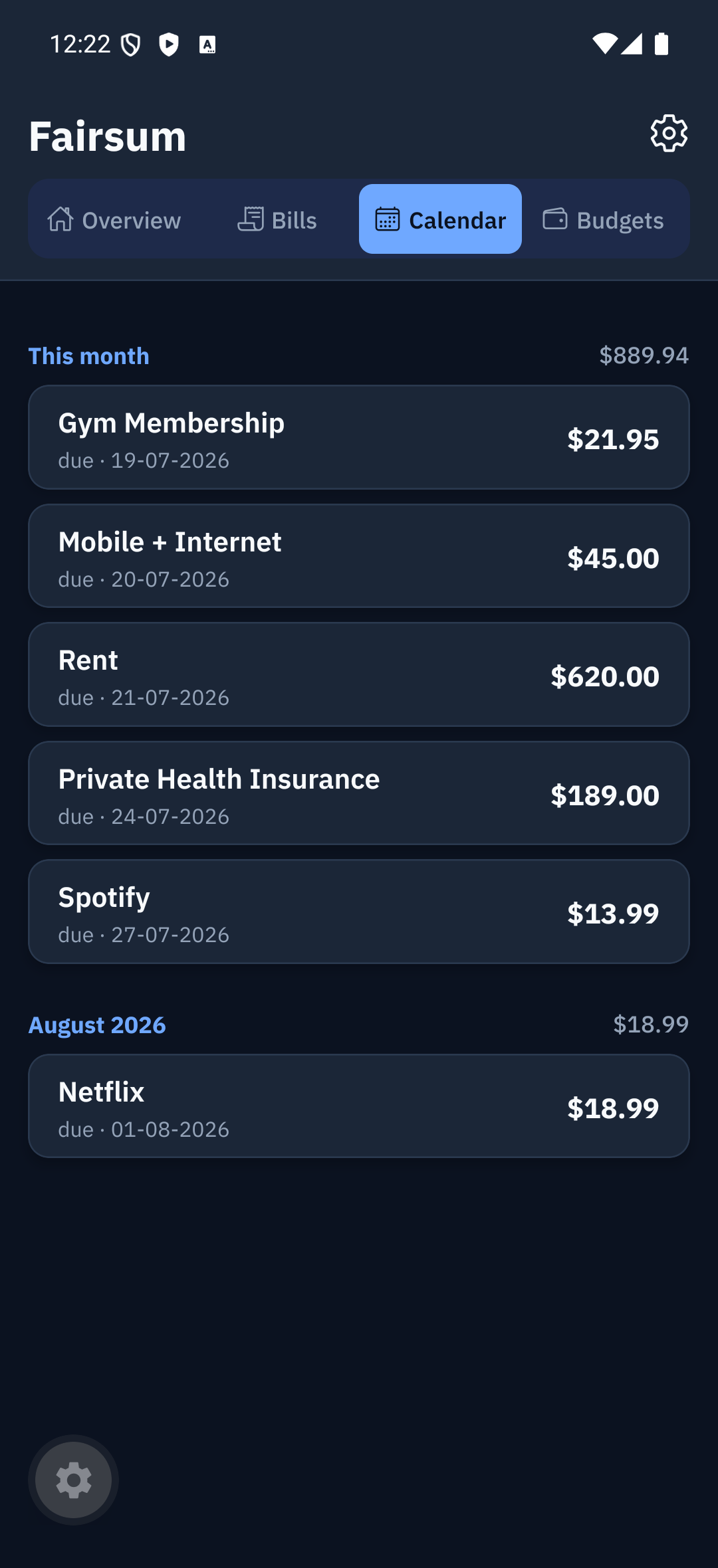
The Calendar tab shows your upcoming bills and renewals by date, so you can see what's coming.
Budgets
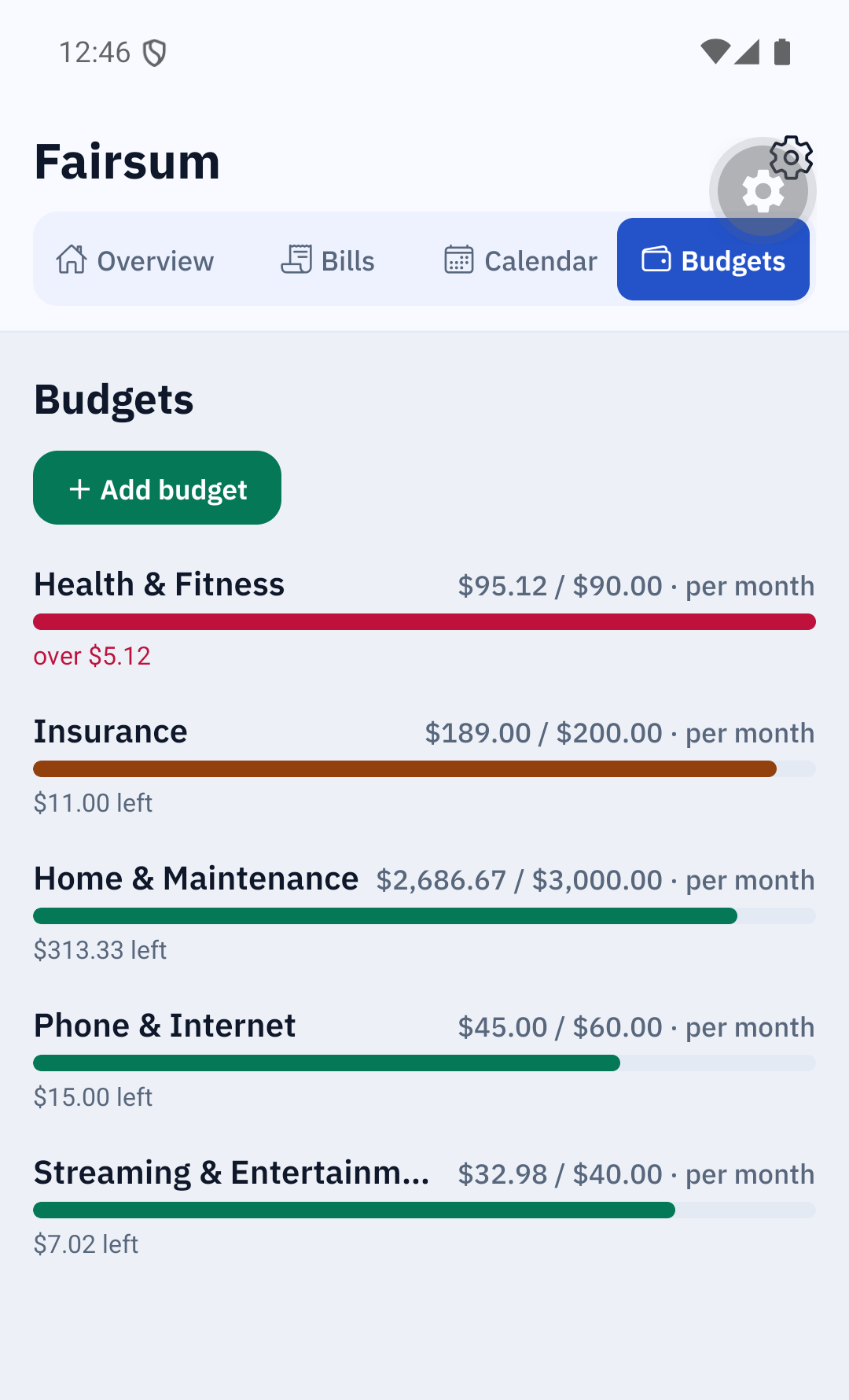
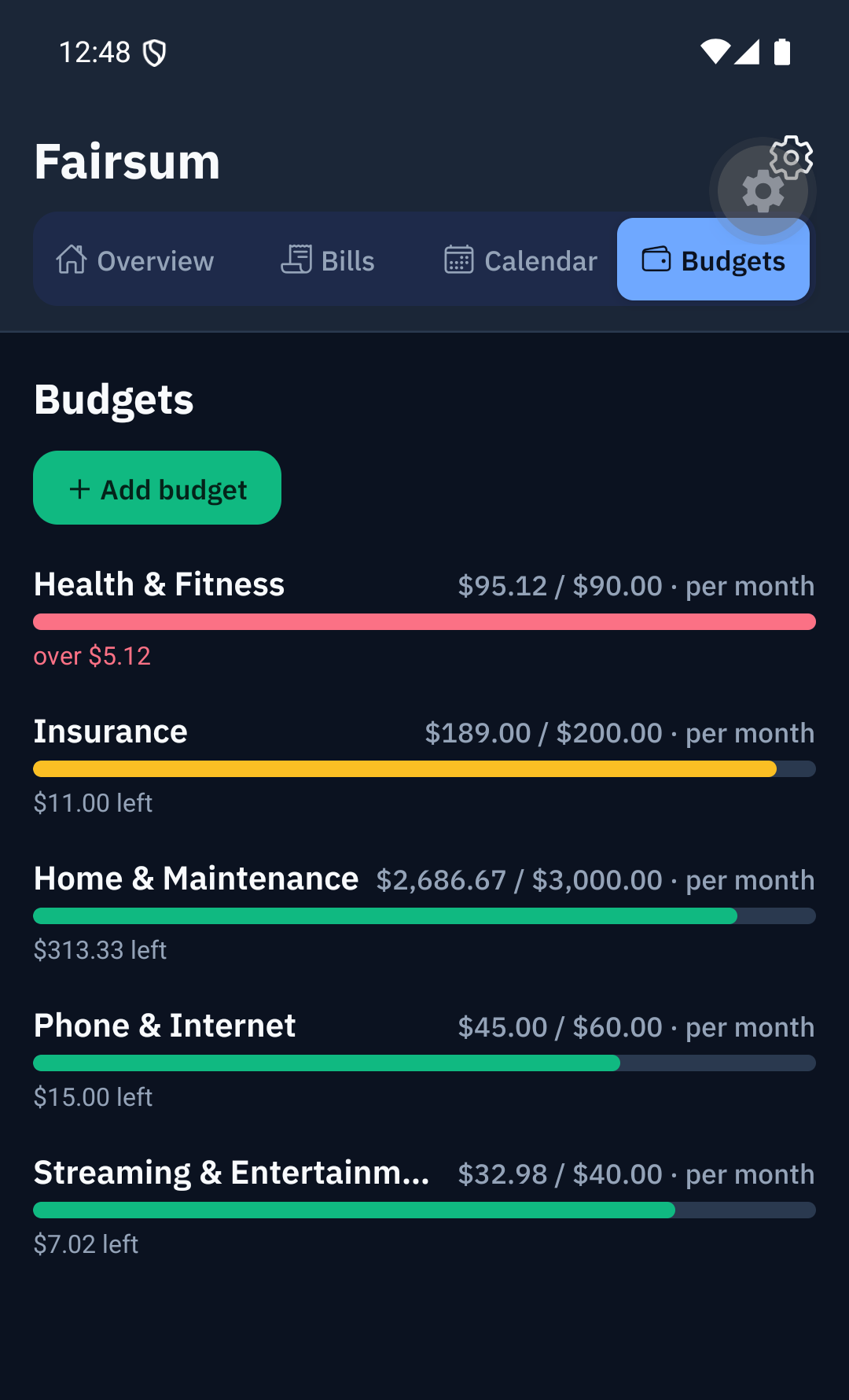
The Budgets tab lets you set a monthly spending limit for any category. Each budget shows a progress bar — green while you're under, amber as you get close, and red once you go over — so you can see where you're tracking at a glance. Tap Add budget to set one.
Reminders
Fairsum can remind you before a bill or subscription is due. Reminders are local notifications on your phone.
- Set how far ahead you're reminded in Settings → Reminder (Same day, or 1/2/3/5/7 days before). This applies to all your bills and subscriptions.
- You can also get a weekly digest notification (Monday morning) summarising the week's bills — toggle it in Settings → Notifications.
Editing, duplicating, or deleting an entry
- Tap an entry to edit it. Change any field and Save, or Delete it.
- Long-press an entry to Duplicate it (handy for similar bills).
- After deleting, an Undo option appears briefly.
Settings
Open Settings with the gear icon on Overview. From here you can:
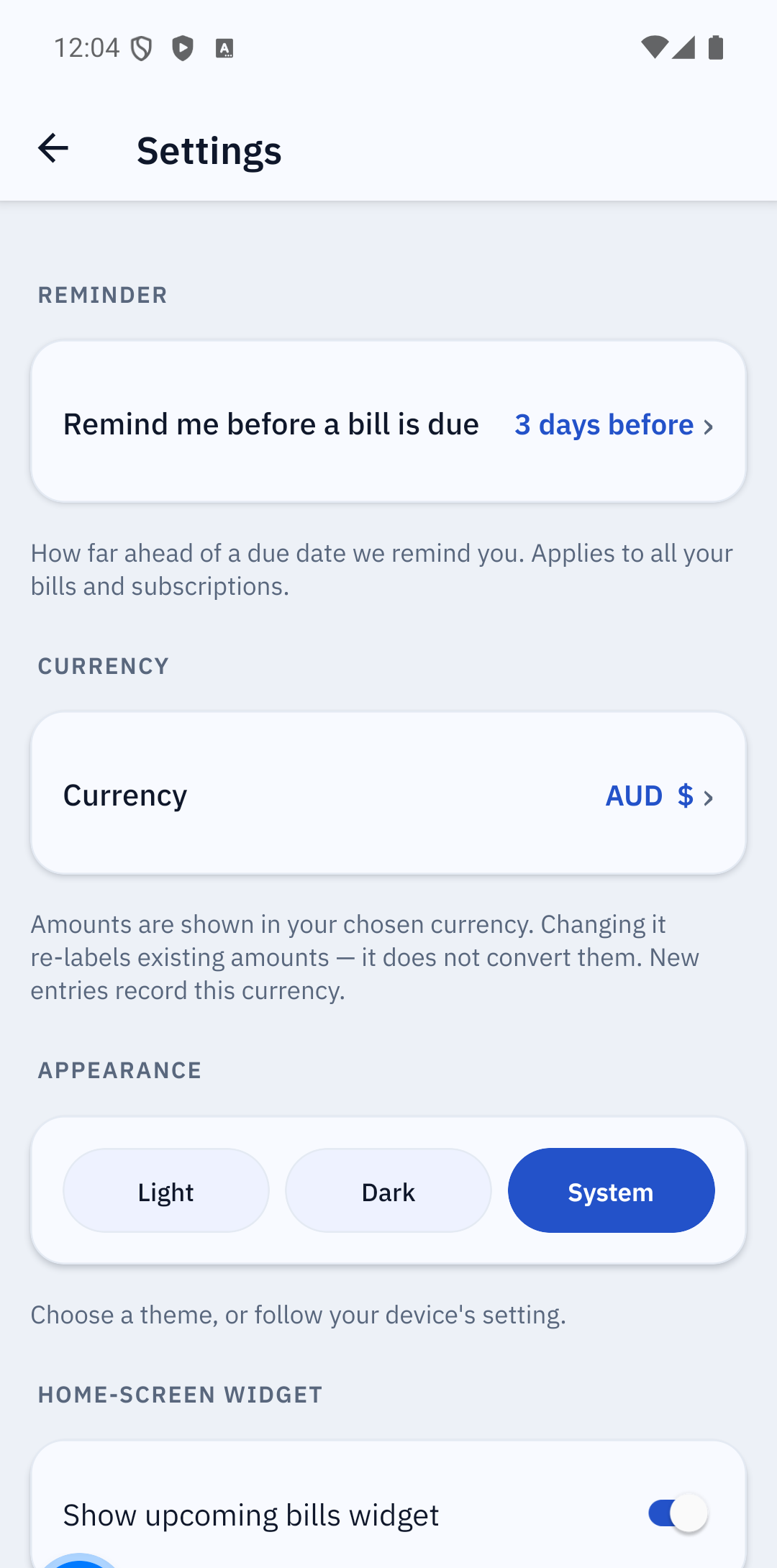
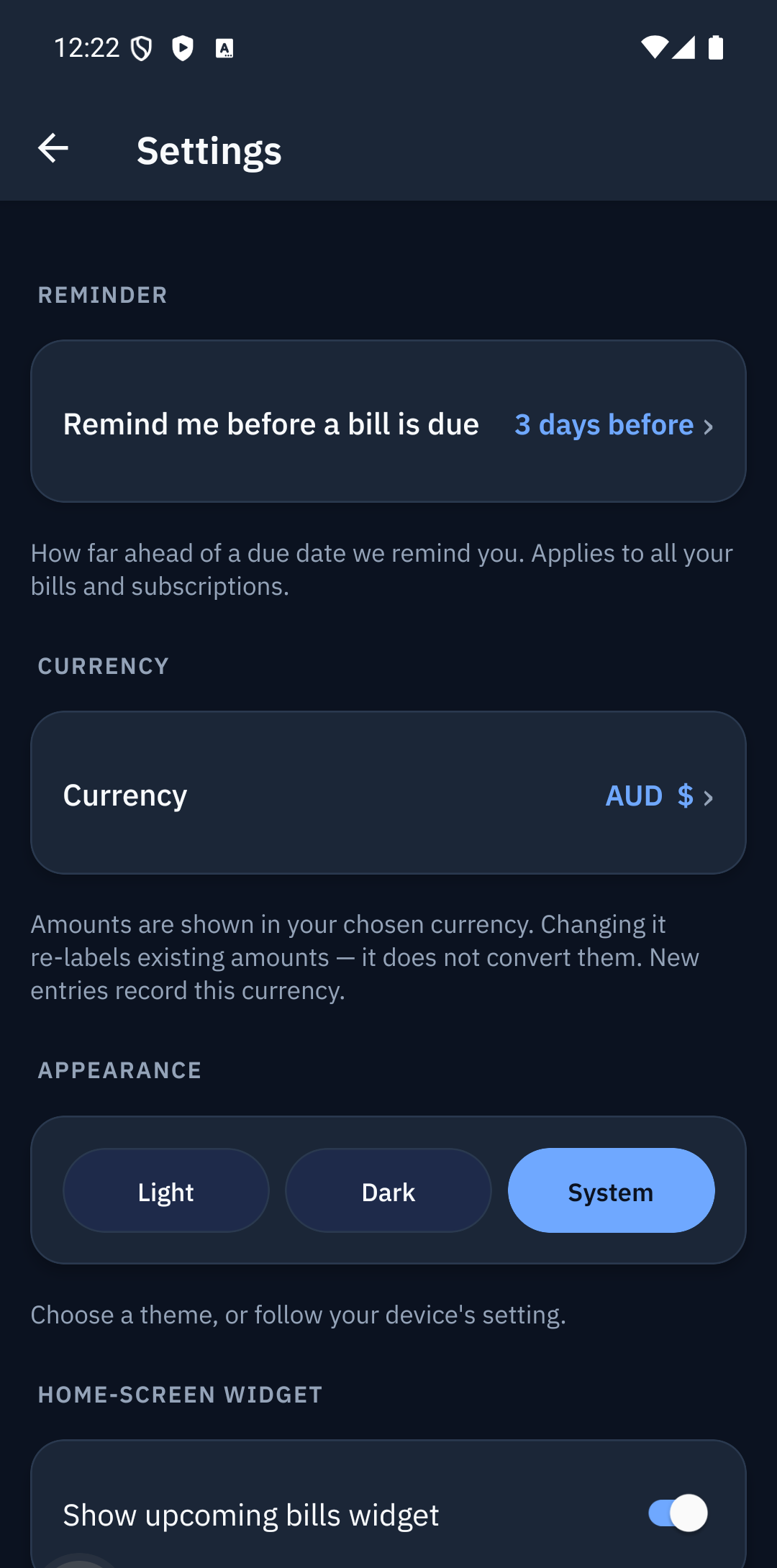
- Reminder — set the reminder lead time (see Reminders).
- Currency — Australian dollars (AUD) by default; you can switch to another currency (amounts are re-labelled, not converted).
- Appearance — Light, Dark, or follow your system theme.
- Home-screen widget (Android) — show upcoming bills on your home screen.
- Notifications — turn the weekly bill digest on/off.
- Categories — add or remove your own custom categories.
- Backup and Export data — see below.
Home-screen widget (Android)
Add the Fairsum widget to your Android home screen to see your upcoming bills without opening the app: long-press your home screen → Widgets → Fairsum. Turn it on/off in Settings → Home-screen widget.
Backing up and restoring your data
Because your data lives only on your phone, it's worth backing it up.
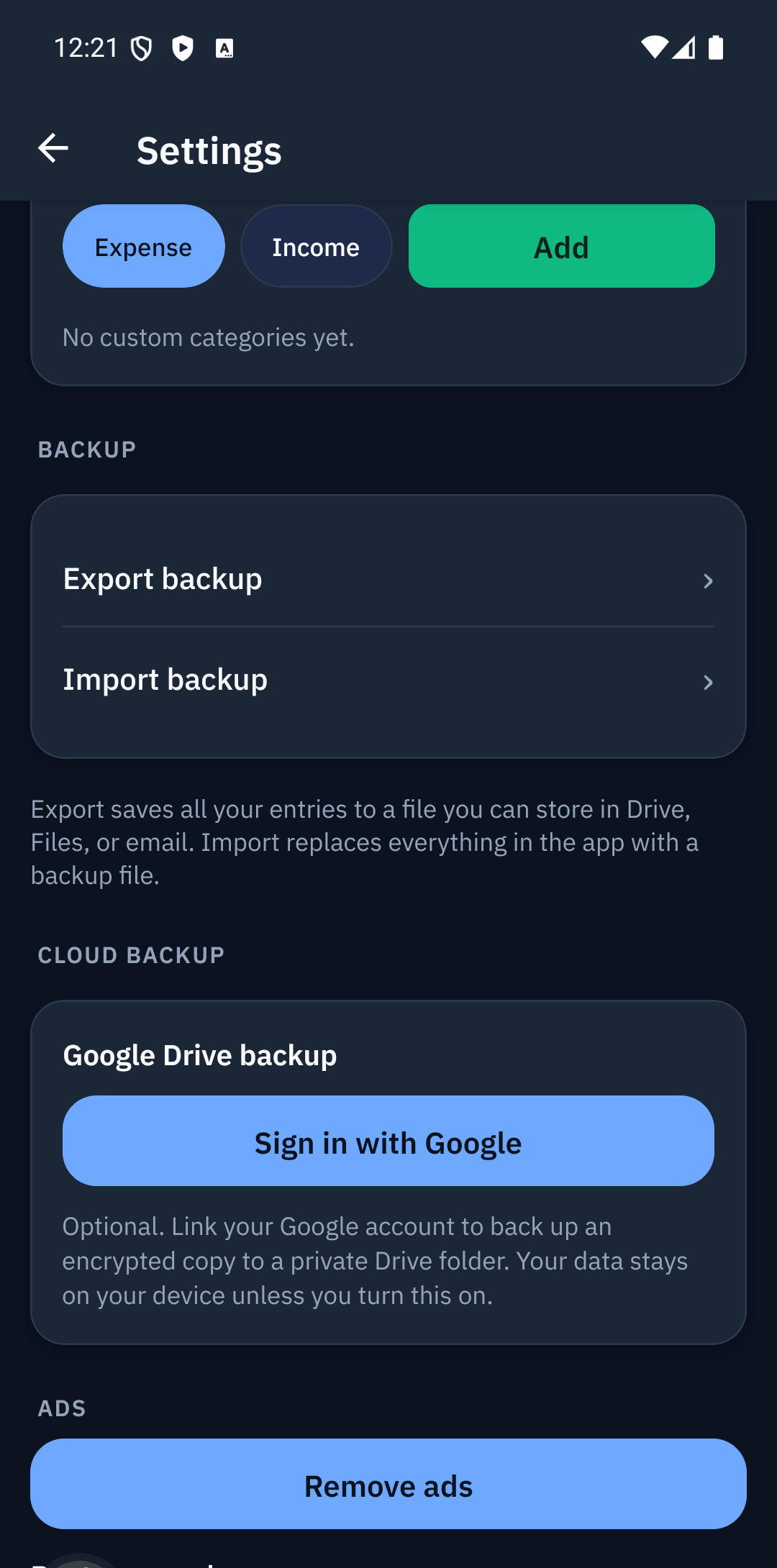
- Export backup (Settings → Backup) saves an encrypted backup file you can store in Google Drive, Files, or email.
- Import backup restores from one of those files (this replaces the data currently in the app).
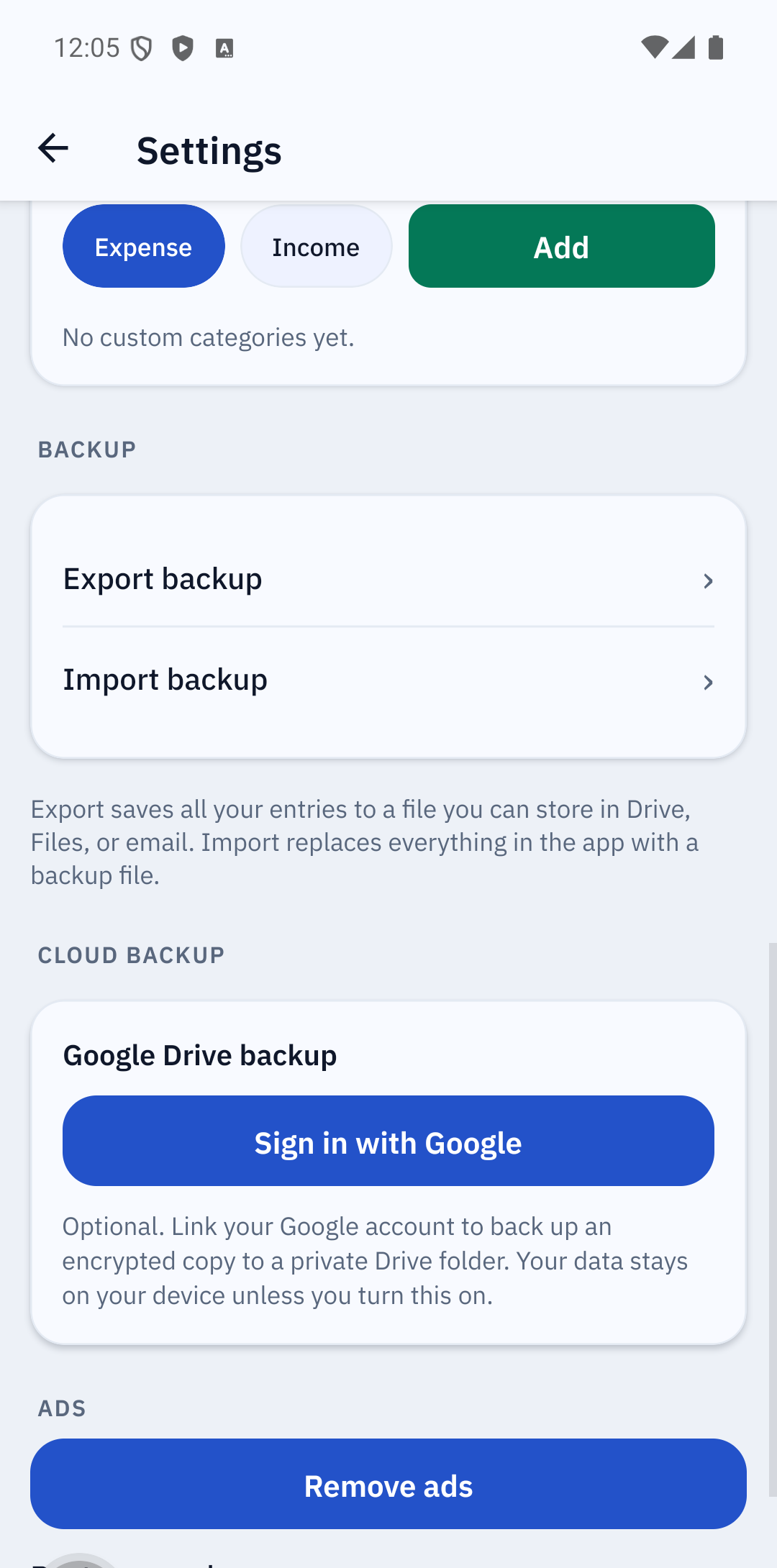
Keep your backup somewhere safe — if you lose or reset your phone without a backup, the data can't be recovered.
Export as a spreadsheet (CSV)
Settings → Export data → Export as spreadsheet (CSV) saves a plain spreadsheet copy of your entries you can open in Excel, Google Sheets, or anywhere. It's for your own records — use Export backup (not CSV) if you want to move your data to a new phone.
Your privacy
Fairsum stores your entries on your device only — they're never sent to us or any server. The app shows ads (Google AdMob), which collect standard advertising data on your device; see the Privacy Policy for detail.
Tips
- Mark the things you actively pay as bills so they show in the Bills tab with due/overdue countdowns.
- Set your reminder lead time to whatever gives you enough notice.
- Back up occasionally, especially before changing phones.
- Add custom categories in Settings to match how you think about your money.